


Stop building reports from scratch. These prompts are designed to work with AI tools connected to your NetSuite instance, just copy, customize the bracketed fields, and run. We've organized them by department so you can find exactly what you need
How to use these prompts: Replace anything in [brackets] with your own values. Each prompt includes context on when to use it and tips for getting the best results.
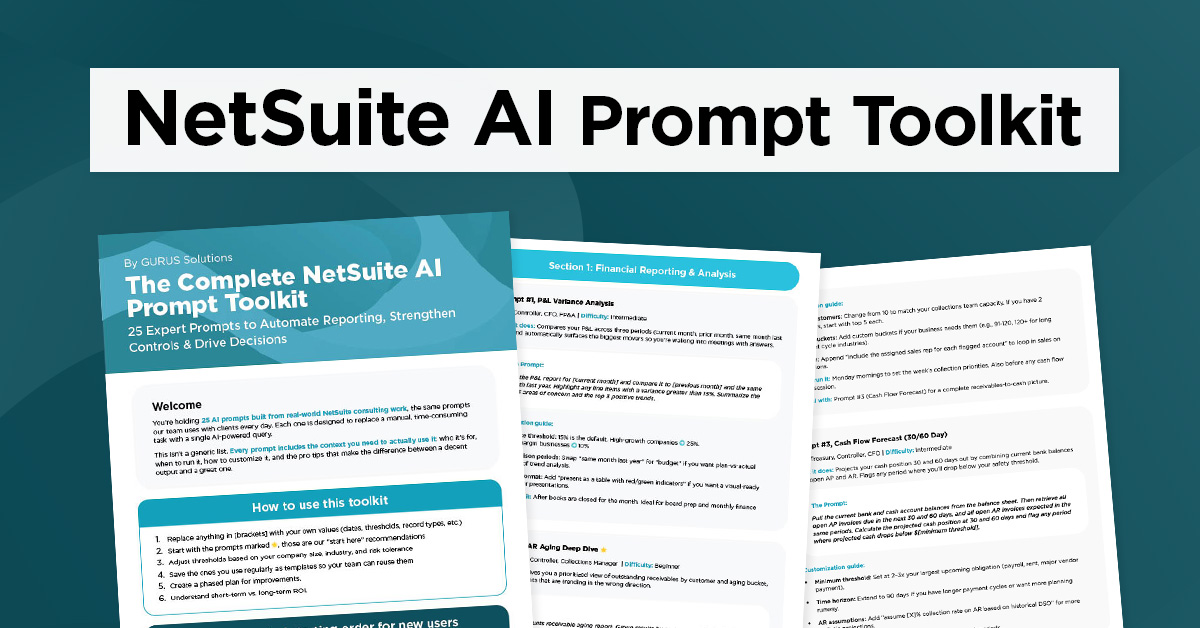
Want all 25 prompts in one downloadable toolkit?
We've packaged every prompt on this page, plus a customization cheat sheet, implementation priority matrix, and printable quick-reference cards, into a single PDF you can share with your team.
Enter your business email to instantly download the PDF.
Request more info about Ready-to-Use AI Prompts for NetSuite
Financial Reporting & Analysis
P&L Variance Analysis
Best for: Controllers, CFOs, FP&A
When to use it: Monthly close, board prep, or anytime leadership asks “why are expenses up?”
Running a P&L comparison shouldn't take half your morning. This prompt pulls your current month, prior month, and year-over-year numbers, then flags anything that moved more than 15%, so you're walking into meetings with answers, not questions.
The Prompt:
Pull the P&L report for [current month] and compare it to [previous month] and the same month last year. Highlight any line items with a variance greater than 15%. Summarize the top 3 areas of concern and the top 3 positive trends.Pro tip: Adjust the 15% threshold based on your business. High-growth companies may want 25%. Tighter-margin businesses should drop to 10%.
Cash Flow Forecast (30/60 Day)
Best for: Treasury, Controllers, CFOs
When to use it: Weekly treasury reviews, before making large purchases, or when planning vendor payment timing.
This one combines your current bank balances with open AP and AR to project where your cash will be in 30 and 60 days. Think of it as an early warning system for your bank account.
The Prompt:
Pull the current bank and cash account balances from the balance sheet. Then retrieve all open AP invoices due in the next 30 and 60 days, and all open AR invoices expected in the same periods. Calculate the projected cash position at 30 and 60 days and flag any period where projected cash drops below $[minimum threshold].Pro tip: Set your minimum threshold at 2–3x your largest upcoming obligation. Update the AR collection assumptions based on your actual DSO, not your payment terms.
Customer Revenue Concentration Risk
Best for: CFOs, VP of Sales, Board Reporting
When to use it: Quarterly business reviews, annual planning, investor prep, or when a major customer relationship shifts.
If one customer disappearing would hurt, you have concentration risk. This prompt quantifies it, showing each customer's share of revenue, who's growing, and who's quietly declining.
The Prompt:
Analyze revenue for the last [12] months by customer. Calculate each customer's percentage of total revenue, identify any customer representing more than [10]% of total revenue, compare current period revenue per customer to the same period last year, and flag any top-20 customers showing a declining trend. Present a concentration risk summary.Pro tip: The 10% threshold is an SEC disclosure standard, but smart operators start worrying at 5%. A declining top-20 customer is a bigger red flag than a flat one, share those with your sales team immediately.
Subsidiary Performance Comparison
Best for: CFOs, Group Controllers, Board Reporting
When to use it: Monthly subsidiary reviews, board reporting, or when evaluating strategic decisions about business units.
If you're running multiple subsidiaries in NetSuite, you already know how painful it is to pull side-by-side comparisons manually. This prompt does it in seconds and highlights who's underperforming.
The Prompt:
Pull key financial metrics for each subsidiary: revenue, gross margin %, operating expenses, net income, AR days outstanding, and AP days outstanding. Present a side-by-side comparison table and highlight subsidiaries underperforming against the group average. Include quarter-over-quarter trend for each metric.Pro tip: Don't just look at absolute numbers, a small subsidiary with declining margins is a bigger concern than a large one with flat margins. Trend direction matters more than current position.
Accounts Receivable
AR Aging Deep Dive
Best for: AR Teams, Controllers, Collections Managers
When to use it: Weekly collections meetings, cash flow planning, or when DSO starts creeping up. Best run on Monday mornings to set the week's priorities.
This gives you a prioritized view of who owes you money, how long it's been outstanding, and, critically, which accounts are trending in the wrong direction.
The Prompt:
Run the accounts receivable aging report. Group results by customer and aging bucket (current, 1-30, 31-60, 61-90, 90+ days). Identify the top 10 customers by overdue balance and flag any accounts that have moved into a worse aging bucket compared to last month.Pro tip: Pair this with the Cash Flow Forecast prompt for a complete receivables picture. Pay special attention to customers who jumped buckets, that's your early warning system.
Revenue Recognition
Deferred Revenue Status Check
Best for: Controllers, Revenue Accountants, Auditors
When to use it: Month-end close, ASC 606 compliance reviews, or when finance and sales need to reconcile billed vs. recognized revenue.
Stalled rev rec schedules are one of the most common NetSuite gotchas. This prompt surfaces everything that's been billed but not yet recognized and flags anything that looks stuck.
The Prompt:
List all sales orders from [period] that have been billed but not yet fully recognized as revenue. Group by subsidiary and revenue recognition rule. Show the total deferred revenue balance and identify any transactions where the recognition schedule appears to be stalled or misconfigured.Pro tip: If you find stalled schedules, check that the recognition start date and rule are both set correctly on the source transaction. That's the root cause 90% of the time.
Financial Controls & Audit
Journal Entry Anomaly Detection
Best for: Internal Audit, Controllers, Compliance Teams
When to use it: Month-end close review, internal audit prep, or as a routine control check. Run this before signing off on any period close.
Think of this as a fraud-detection sweep for your GL. It scans journal entries for red flags, after-hours posts, unusual users, round numbers, rarely-used accounts, and ranks them by risk.
The Prompt:
Query all GL journal entries posted in [month/year]. Flag any entries that meet the following criteria: posted after business hours, posted by an unusual user for that account, amounts that are round numbers above $[threshold], duplicate amounts on the same day, or entries posted to accounts that rarely receive activity. Summarize findings in a risk-ranked table.Pro tip: Set your threshold based on materiality, $5,000 is a common starting point. Most flags will have legitimate explanations, but the ones that don't are gold.
Month-End Close Readiness Checklist
Best for: Controllers, Accounting Managers
When to use it: 2–3 days before your target close date. Run daily during close week to track progress.
Before you close the books, this prompt checks everything that's still open, unposted entries, unreconciled accounts, pending intercompany transactions, and more. It even gives you a readiness score.
The Prompt:
Assess month-end close readiness by checking: number of unposted journal entries, open intercompany transactions pending elimination, bank reconciliation status for all accounts, unmatched vendor bills, pending revenue recognition schedules, and any open AP or AR transactions in previous periods. Present a readiness score with a checklist of blocking items.Pro tip: The "previous period open transactions" check is the one most teams skip and most auditors catch. Make it a habit. A readiness score below 80% means you're not ready to close.
Cross-Module Exception Report
Best for: Internal Audit, Controllers, System Admins
When to use it: Monthly close, internal audit, or when you suspect data integrity issues across order-to-cash or procure-to-pay cycles.
This casts a wide net across your entire NetSuite instance looking for transactions that don't match up between modules, the gaps where errors and fraud hide.
The Prompt:
Generate a cross-module exception report covering: sales orders billed but not shipped, purchase orders received but not billed, journal entries posted without approvals (if applicable), invoices with mismatched quantities versus the sales order, and credit memos not linked to an original invoice. Group by module and severity.Pro tip: Unlinked credit memos are a classic fraud indicator, always investigate those first. POs received but not billed usually mean your AP team has a backlog, not a problem, but check anyway.
Duplicate Transaction Scanner
Best for: AP Teams, Controllers, Internal Audit
When to use it: Before payment runs, during month-end close, or after bulk data imports.
Double payments happen more than anyone likes to admit. This prompt scans for potential duplicates across vendor bills, invoices, or journal entries and ranks them by confidence level.
The Prompt:
Scan all [vendor bills / invoices / journal entries] created in [month/year]. Identify potential duplicates based on: same vendor + same amount + same date (within 3 days), same reference/PO number across multiple transactions, and identical line item descriptions with matching amounts. Rank by confidence level (high, medium, low) and estimated duplicate value.Pro tip: High-confidence duplicates should be investigated immediately. Medium and low confidence will have false positives, that's expected. The ROI of catching even one true duplicate usually justifies the review time.
Inventory & Supply Chain
Inventory Health Snapshot
Best for: Warehouse Managers, Purchasing, Operations
When to use it: Weekly inventory reviews, purchasing planning, or before placing large POs.
One prompt, three answers: what needs reordering, what's dead stock, and what's overstocked. All summarized by location and product category.
The Prompt:
Pull the current inventory snapshot across all locations. Identify items where quantity on hand is below the reorder point, items with no movement in the last [90] days (potential dead stock), and items where current stock exceeds [6] months of average demand. Summarize by location and product category with recommended actions.Pro tip: Adjust the dead stock window based on your industry, seasonal businesses may need 180 days. The 6-month overstock threshold works for most, but perishable goods should use 2–3 months..
Vendor Performance Scorecard
Best for: Procurement, Operations, Purchasing Managers
When to use it: Quarterly vendor reviews, contract renewal prep, or when evaluating your approved vendor list.
Data-driven ammunition for your next vendor negotiation. This ranks suppliers on delivery speed, reliability, pricing consistency, and quality.
The Prompt:
Retrieve all purchase orders from the last [12] months. Group by vendor and calculate: average lead time (PO date to receipt), on-time delivery rate, average price variance from standard cost, and return/reject rate. Rank vendors by overall performance and identify the top 3 underperforming suppliers.Pro tip: Share scorecards with your vendors, it sets clear expectations and opens the door for improvement conversations. The best procurement teams use these as negotiation leverage.
Purchase Price Trend Analysis
Best for: AProcurement, FP&A, CFOs
When to use it: Quarterly cost reviews, annual budget planning, or when gross margins are declining without an obvious explanation.
Cost creep is a margin killer that sneaks up on you. This prompt tracks unit prices over time and tells you exactly which vendors are driving increases.
The Prompt:
For the top [20] items by purchase volume, pull the unit purchase price from all POs over the last [12] months. Chart the price trend per item per quarter and flag any items where the price has increased by more than [10]% over the period. Identify which vendors are driving the increases.Pro tip: Use this alongside the Vendor Performance Scorecard. A vendor with great delivery but rising prices may still be costing you more than a slightly slower, cheaper alternative.
Inventory Rebalancing Recommendations
Best for: Warehouse Managers, Supply Chain Planners
When to use it: Monthly inventory planning, before peak seasons, or when one warehouse is overstocked while another runs out.
Stop guessing where to send inventory. This analyzes stock levels vs. sales velocity at each location and recommends specific transfer quantities.
The Prompt:
Compare inventory levels for [product category or item list] across all warehouse locations. Identify locations where stock significantly exceeds demand versus locations approaching stockout. Recommend specific transfer order quantities to balance inventory across sites based on the last [3] months of sales velocity at each location.Pro tip: Factor in transfer lead times, there's no point rebalancing if the stock won't arrive before the stockout. Run this more frequently during peak seasons.
Order Management
Sales Order Fulfillment Tracker
Best for: Operations, Warehouse, Customer Service
When to use it: Daily operations check, weekly fulfillment meetings, or anytime the warehouse team needs a clear punch list.
See exactly what's stuck in your fulfillment pipeline, overdue orders, inventory shortfalls, and approval bottlenecks, before customers start calling.
The Prompt:
Show all open sales orders sorted by expected ship date. Flag any orders that are past their promised date, orders where inventory is insufficient to fulfill, and orders pending approval for more than [3] business days. Provide a summary count by status (pending fulfillment, partially fulfilled, pending approval, backordered).Pro tip: The 3-day approval threshold is aggressive for some orgs, adjust based on your approval SLA. Past-due orders should be your #1 priority every morning.
CRM & Sales
Sales Pipeline Analysis
Best for: VP of Sales, Sales Ops, CRM Admins
When to use it: Weekly pipeline reviews, quarterly forecasting, or when the VP of Sales asks "are we going to hit our number?"
This gives you the full pipeline picture, total value by stage, velocity, stalled deals, and win rates, so leadership can coach and forecast with confidence.
The Prompt:
Pull all open opportunities and estimates from the CRM. Calculate total pipeline value by stage, average deal size, win rate for the last [6] months, average days in each stage, and deals that have been stalled in the same stage for more than [30] days. Flag any high-value deals at risk and compare current pipeline to [quarterly target].Pro tip: Stalled deals are the silent pipeline killer. If a deal hasn't moved stages in 30 days, it usually needs executive attention or should be disqualified. Honest pipelines forecast better.
Executive Reporting
Daily Executive Dashboard
Best for: CEOs, CFOs, COOs
When to use it: Every morning. Set this up as the first thing leadership sees. It replaces the "how are we doing?" Slack messages.
A one-prompt morning briefing, revenue, cash, AR/AP, pipeline, and inventory alerts in a single concise view.
The Prompt:
Generate a daily executive dashboard with the following: yesterday's total revenue and orders, current cash position across all bank accounts, AR and AP aging summaries, top 5 open opportunities by value, any overdue sales orders, and inventory alerts for items below reorder point. Present this as a concise, one-page executive briefing.Pro tip: Consistency is key, executives want the same format every day so they can scan for changes, not re-learn the layout. Add week-over-week comparisons once the daily habit is established.
KPI Trend Analysis
Best for: FP&A, Executives, Department Heads =
When to use it: Board prep, strategic planning, performance reviews, or whenever someone says "what's the trend on..."
Pick any metric and get a full trend analysis with growth rates, rolling averages, and anomaly detection. Turns raw numbers into a story.
The Prompt:
For [metric: e.g. total revenue, number of new customers, average order value, total POs issued], pull monthly values for the last [12] months. Calculate month-over-month growth rate, 3-month rolling average, and identify any months that deviate more than [2] standard deviations from the trend. Visualize the trend and provide a plain-language summary of what the data is telling us.Pro tip: The standard deviation flag catches both unusually good and bad months that deserve investigation. Adjust from 2 to 1.5 standard deviations if you want more sensitivity.
Security & Administration
User Access & Privilege Audit
Best for: NetSuite Admins, IT, Compliance Teams
When to use it: Quarterly security reviews, SOX compliance prep, before external audits, or after org restructuring.
Over-privileged accounts, dormant users, and permission creep, the three biggest security risks hiding in your NetSuite instance. This prompt finds them all.
The Prompt:
List all active NetSuite users with their assigned roles. Identify any users with Administrator or Full Access roles, users who have not logged in within the last [90] days, and users whose role assignments exceed the typical permissions for their department. Flag any accounts that appear to have excessive privilege accumulation.Pro tip: Inactive users with high-privilege roles are your biggest risk. Deactivate first, ask questions later. Also check for users who accumulated roles across department transfers.
Login Security Monitor
Best for: NetSuite Admins, IT Security
When to use it: Weekly security reviews, after any suspected breach, or as ongoing compliance monitoring.
Scan your login audit trail for suspicious activity, failed attempts, unusual locations, off-hours access, and concurrent sessions from different IPs.
The Prompt:
Review the login audit trail for the past [30] days. Flag any accounts with failed login attempts exceeding [5] in a single day, logins from unusual geographic locations, concurrent sessions from different IPs, and logins occurring outside of normal business hours ([8AM-7PM]). Present results grouped by severity level.Pro tip: Adjust business hours for your time zones. If you have international teams, exclude their known locations from the geographic flags. Focus investigation time on high-severity items first.
Saved Search Cleanup Audit
Best for: NetSuite Admins
When to use it: Annual system hygiene, when search performance is slow, or when onboarding new admins.
Most NetSuite instances are drowning in saved searches nobody uses. This finds the dead weight and gives you a cleanup plan.
The Prompt:
List all saved searches in the system. For each, show the owner, last modified date, whether it's public or private, and if it's used in any dashboards, reports, or workflows. Identify searches that haven't been modified in over [1 year], duplicate or near-duplicate searches, and searches owned by inactive users. Recommend a cleanup plan.Pro tip: Don't delete searches tied to workflows or SuiteScripts, you'll break things. Start by archiving (making private) rather than deleting. Ownerless searches are safe first targets.
Record Modification Audit Trail
Best for: Compliance Teams, Controllers, Admins
When to use it: After discovering unexpected data changes, audit prep, or routine compliance monitoring.
See exactly who changed what, when, and what the old values were. Essential for compliance and catching unauthorized edits.
The Prompt:
Pull the system audit log for all modifications to [record type: e.g. vendor records, employee records, pricing] in the last [30] days. Show who made each change, what field was modified, the old value and new value. Flag any bulk changes (more than [10] records modified by the same user in one session) and changes made by users who don't typically edit these record types.Pro tip: Run this for vendor records and pricing fields monthly at minimum. Bulk changes aren't always bad (imports, mass updates), but they should always have a documented reason.
SuiteScript & Workflow Health Check
Best for: NetSuite Admins, Developers
When to use it: Before major upgrades, during admin transitions, quarterly system reviews, or when investigating performance issues.
Find the customization land mines in your account, abandoned scripts, hardcoded IDs, testing deployments in production, and scripts without guardrails.
The Prompt:
List all active SuiteScript deployments and workflows in the account. Identify any scripts or workflows that are: deployed but set to "Testing" status, owned by users who are no longer active, triggered on high-volume records without execution limits, or referencing hardcoded internal IDs. Provide a prioritized remediation list.Pro tip: Hardcoded internal IDs are a ticking time bomb for sandbox refreshes and migrations. Scripts on high-volume records without governance limits can burn through your daily script usage allocation fast.
Custom & Ad-Hoc
Custom SuiteQL Query Builde
Best for: Admins, Developers, Power Users
When to use it: Whenever you need custom data pulls or one-off analysis that standard reports don't cover.
A flexible template for generating ad-hoc SuiteQL queries. Describe what you need and let AI build the query.
The Prompt:
Write and run a SuiteQL query to find all [record type] where [field condition, e.g. "created date is in the last 7 days" or "status is pending approval" or "amount is greater than $50,000"]. Return the following fields: [list desired fields]. Sort by [field] in descending order and limit to the top [50] results.Pro tip: Be specific about field names, NetSuite internal field IDs don't always match the UI labels. If you're not sure of the field ID, ask the AI to help you identify it first.
Custom Report Builder
Best for: Anyone who needs a report that doesn't exist yet
When to use it: Anytime someone asks for a report that would normally take an hour to build as a saved search.
Describe what you need in plain English. That's it. No saved search builder, no formula fields, no frustration.
The Prompt:
I need a report that shows [describe what you need, e.g. "all customers who placed orders over $10,000 in Q4 but have not placed any orders in Q1, along with their last order date, total spend last year, and assigned sales rep"]. Format the results as a clean table and suggest what follow-up actions the sales team should take.Pro tip: The more specific you are about what you want to see, the better the output. Include the time period, threshold values, and what columns you want. Don't forget to ask for the "so what", recommended actions make reports actionable.
Book a consultation with GURUS Solutions to find out if your ERP can handle the environment you are operating in.